Category: development

GameMaker Tutorial: Password systems 2: encoding/decoding

As we established in the first article in this series, a game save password stores game state data. In this article, we’re going to talk about the low level details of how this is done. We won’t be talking much about the password itself, or the game state data. We’ll be focusing instead rather narrowly on how to encode and decode the data.

Numeric data

As far as numeric data is concerned, we’re only going to worry about encoding/decoding integers, for simplicity’s sake. For the most part, we’ll be concerned with positive integers, but we’ll cover negative values as well.

Actually, treating numeric GML data values as integers is a little bit tricky, since in GameMaker the only data types available are strings and reals (floating point numbers). For the most part you can treat a number as though it were an integer in GameMaker, as long as you don’t do math on the number that causes the digits after the decimal point to become non-zero values.

If you want decimal values, you can store the value as an integer, and then divide it by 10, or 100, or however many decimal places as you need after you decode it. Or, if you want to store a fraction, you can store the numerator and denominator as integers, and divide them after decoding them.

As long as you don’t deal in fractions and decimals, you can pretend that your numbers are integers, and GameMaker for the most part will act as though they are. This will come up later when we hit the limit for the largest integer value that we can encode using our method (16,777,215). I’ll explain why below, but for now it’s enough to know this should be a large enough value that we don’t really need to worry about trying to encode larger values, at least for most games.

The basic idea is that each character in your password alphabet stands for an integer value. Notice that the complete alphabet (26 upper case + 26 lower case) + the 10 numerals + 2 special characters gives you a range of 64 values; 2^6 = 64, so each character in a password can represent a 6-bit binary value.

A B C D E F G H
0 1 2 3 4 5 6 7
I J K L M N O P
8 9 10 11 12 13 14 15
Q R S T U V W X
16 17 18 19 20 21 22 23
Y Z a b c d e f
24 25 26 27 28 29 30 31
g h i j k l m n
32 33 34 35 36 37 38 39
o p q r s t u v
40 41 42 43 44 45 46 47
w x y z 0 1 2 3
48 49 50 51 52 53 54 55
4 5 6 7 8 9 ! ?
56 57 58 59 60 61 62 63

Beyond 63

What can you do if you want to store a value larger than 63? Simple, you just use a second digit in your base-64 number. Just like the next number after 9 is 10, in base-64 the next number after ? is BA. Until you’ve looked at base-64 numbers for a long time, it’s going to be very difficult to recognize the value represented by a base-64 number, but we don’t need to — we’ll tell the computer to do it for us with some gml scripts.

We said before that a 4-digit base-64 number stores 24 bits, or up to 16,777,215 in base-10. But for some numbers that might be overkill. If we wanted to, we could treat each digit as a single base-64 value, and add them together. For a 4-character base-64 string, this would give us a range of 0-252, nearly a byte. It’s a much less compact way of storing the data, but for small values it’s not too bad.

To do the conversion from base-10 to base-64 and back, we’ll need some gml scripts.

b64_to_dec(b64)

/*
Takes a string of a b64-encoded value and converts it to a real number
*/
var b64_alphabet = "ABCDEFGHIJKLMNOPQRSTUVWXYZabcdefghijklmnopqrstuvwxyz0123456789!?";
var value = 0;
var digit = 0;
var neg = 1;

if string_copy(argument0,1,1) == "-"{
 argument0 = string_copy(argument0,2,string_length(argument0)-1);
 neg = -1;
}

for (var i = string_length(argument0); i >= 1; i--){
 value += (string_pos(string_copy(argument0,i,1), b64_alphabet)-1) * power(64,digit); 
 digit++;
}

return neg * value;

/*
Takes a real number and converts it to a base-64 encoded string. Supports integer values from 0-16777215.
*/

var b64_alphabet = "ABCDEFGHIJKLMNOPQRSTUVWXYZabcdefghijklmnopqrstuvwxyz0123456789!?";
var value = abs(argument0);
var r;
var str = ""; 
var done = false;

while !done{
 r = value mod 64;
 str = string_char_at(b64_alphabet, r+1) + str;
 value = (value - r) div 64;
 if (value == 0){done = true;}
}

if (argument0 < 0){
 str = "-" + str;
}

return str;

Lastly, it will be handy to have a function that can pad a B64 encoded string to a specific length:

b64_padded

/*
Takes a base-64 encoded string (argument0) and pads it to padded_length (argument1) with leading "A"'s (0's). 
If the number is negative, the first character in the padded string will be a "-". If the padded_length is 
less than the length of the b64 value, the function returns -1 to signify an error. 

(Note the error code returned is a real number, -1, not to be confused with the correct output of 
b64_padded(-1,2), which would return the *string* "-1") 
*/

//argument0 the b64 string to pad to length
//argument1 the length to pad to

b64 = argument0;
len = argument1;

if len < string_length(b64){return -1;} //too short, return error
if len == string_length(b64){return b64;} //just right; we're already done

var str = "";
if string_copy(b64,1,1) == "-"{
 str = "-";
 len--;
 b64 = string_copy(b64,2,string_length(b64)-1);
}
repeat (len - string_length(b64)){str+="A";}
str+=b64;

return str;

Negative Numbers

The scripts above handle negative values just fine. But the minus sign is not part of the base-64 alphabet. If we need to store negative numbers, we have a few choices.

We can expand our password alphabet to include a minus sign (or an arbitrary symbol that we can use as a substitute).

Or we can designate certain characters in the password to store a boolean which signifies whether a given numeric value stored elsewhere in the password is positive or negative. Then encode the absolute value of the number, and re-combine it later with the boolean that holds the sign.

Or we can sacrifice a bit in our base-64 encoded numbers and treat them as signed integers, such that A-g represent values 0 through 32, and h-? represent negative values -1 through -31.

Beyond 16,777,215?

The encoding/decoding scripts work for values up to 16,777,215, or ???? in b64. This value is (2^24)-1. Beyond that, the numbers do not encode/decode properly. The reason for this has to do with the way GameMaker stores numeric values. All numbers in GameMaker are floating point values. GameMaker uses a 32-bit floating point, of which 24 of those bits are used for the digits to the left of the decimal point. The remaining 8 digits are used for the fractional value to the right of the decimal point. This means that for a number above 16777215, we can’t store the value in a 32-bit floating point variable without losing some precision. This precision prevents us from cleanly encoding a value above 16777215 and decoding it back to the same value. Fortunately, such high values should be rare to encounter in the game state data.

What happens if you try to store a larger value depends on the build target. Some may lose precision, resulting in off-by-one conversions — data corruption. Others may fail to return a value entirely when the conversion script is called, which would result in total loss of the data. Certain build targets (I’m not certain which ones) may use 64-bit floating point values, rather than 32-bit. In this case, we can go even higher, up to (2^52)-1. This is a ridiculously large number, and it’s almost certainly more than enough for any game state value you might want to encode.

Tip for validation

If the password space allows a value larger than the max value for a given game state variable, you can use those larger values as a form of validation check. For example, let’s say that the maximum number of lives in your game is 255. This requires an 8-bit value, but since each character represents 6 bits, and we don’t want to bother splitting characters, we use 2 password characters, which represents 12 bits of data. We can use these additional value space between 256 and 4096 for a validation check.

The simplest method would be to reject any password that contains data in the lives bits that decodes to a value greater than 255. Another way to handle this is to use a math value to obfuscate the lives value. Since 4096/256 = 16, we can take the value of the two characters that we use to encode the lives count as follows: lives x 16 = password substring. Now, when you’re validating the password, you can mod the value of the characters that represent the lives by 16, and if the calculation doesn’t work out to 0, then you know the password isn’t valid.

Or you can make the “right” remainder be dependent upon some other part of the password — for example, when the Level is even, the lives substring should mod16 to 0, but when Level is odd, it should mod16 to 1, unless Level is divisible by 3, in which case… Sneaky/unnecessary complexity like this will make the password harder to understand, and therefore require more effort to crack the password system. Don’t fool yourself into thinking you’re coming up with a super secure uncrackable password, but it will make the password a little less obvious than a simple counter, and for password system crackers, will make the puzzle more fun.

String data

Old NES password games did not typically have any string variables to preserve in a save password. In fact, the few games where you could enter a name were all, to the best of my knowledge, battery backup games that used savefiles.

It’s simple enough to store a string in a password, though, since a password is a string. The only real issue is dealing with variable length strings. For a lot of reasons, it’s probably best to stick with a fixed length for strings and pad shorter strings with spaces, trimming them later when applying the password to game state.

However, it looks weird if your password has string values stored as plain text in the password — it’s an obvious indicator to the player that the password is storing data, which could invite mischief. So it’s probably a good idea to encode the data somehow.

We could encode strings by using the numeric ASCII values of the letters, and then convert them back, character by character. While not encrypting the data, it would be sufficiently obfuscated for our purposes.

I won’t bother implementing this for now, since our demo password only has 4 characters, and in any case it’s not really necessary, but it’s good to have an idea of how we might do it if we decide to later on.

Boolean data

GameMaker doesn’t have a true boolean data type. The boolean constants true and false are equal to 1 and 0 in GML. Boolean expressions in GameMaker are handled by evaluating to a real number, and any number <0.5 evaluates as false, and 0.5 or greater evaluates as true. Therefore, to encode a boolean, all we really need to do is encode a value of 0 or 1. Or any other value that will evaluate to true or false.

But, since a single base-64 character can store up to 6 bits of data, and each bit can store a 0 or a 1, a single character could in theory store up to 6 boolean values, which means a 6x greater density than if we just stored one boolean value in each character.

To achieve this, we need to convert a base-64 value to a binary value, and vice versa. Then we would need to break the binary value into its individual bits, and designate each bit for a specific boolean value.

Note that the next few functions do not really deal with binary values, but rather with strings storing 0 and 1 characters, which we can convert to boolean values by using the real() function.

Edit: I’ve updated these functions with more elegant implementations, and replaced the brute force switch statement lookup table approach that I had here originally. Thanks to Ian Schreiber for the suggestion.

bin_to_dec(bin)

/*
Takes a string of a binary encoded value and converts it to a real value.
*/
var bin_alphabet = "01";
var value = 0;
var digit = 0;

for (var i = string_length(argument0); i >= 1; i--){
 value += ((string_pos(string_copy(argument0,i,1), bin_alphabet)-1) * power(2,digit)); 
 digit++;
}

return value;

dec_to_bin(dec)

/*
Takes a base-10 value and encodes it as a binary string
*/
var bin_alphabet = "01";
var r;
var str = "";
var done = false;
neg = sign(argument0);
value = abs(argument0);

while !done{
 r = value mod 2;
 str = string_char_at(bin_alphabet, r+1) + str;
 value = (value - r) div 2;
 if (value == 0){done = true;}
}

if (neg < 0) {str = "-1" + str;}

return str;

bin_to_b64(bin)

/*
Takes a 6-digit binary encoded string and converts it to a b64-encoded character.
*/

return dec_to_b64(bin_to_dec(argument0));

bin_to_bool(bin)

/*
Extracts the argment1-th bit out of the binary string supplied in argument0 and returns it, converted
to a real number. The real value can be interpreted as a boolean (0=false; 1=true).
Argument0 must be a string consisting only of "0"'s and "1"'s
Argument1 must be a number between 1 and string_length(argument0). 
*/

return real(string_copy(argument0,argument1,1));

bool6_to_bin(bool,bool,bool,bool,bool,bool)

/*
Takes six boolean values and concatenates them to create a 6-bit binary encoded string, 
suitable for converstion to a b64 value with the bin_to_b64() function.
*/

/*
force conversion of arguments to gml boolean constants
*/

if argument0{argument0 = true;}else{argument0 = false;}
if argument1{argument1 = true;}else{argument1 = false;}
if argument2{argument2 = true;}else{argument2 = false;}
if argument3{argument3 = true;}else{argument3 = false;}
if argument4{argument4 = true;}else{argument4 = false;}
if argument5{argument5 = true;}else{argument5 = false;}

/*
concatenate bools to string
*/
return string(argument0) + string(argument1) + string(argument2) +
 string(argument3) + string(argument4) + string(argument5);

bin_padded

//pads a binary encoded string (argument0) to length (argument1)
var bin = argument0;//bin string to pad
var len = argument1;//padded length

if len < string_length(bin){return -1;}
if len == string_length(bin){return bin;}

repeat(len - string_length(bin)){bin = "0" + bin;}

return bin;

These scripts should suffice for encoding/decoding all of our data values.

Advanced password validation with checksums and hashes

Additionally, to keep the player honest, you probably want some kind of tamper-proofing to go with your password encoding. Otherwise, it makes tinkering with the password to cheat too easy. For example, you could play the game, get a password, then get hurt, and get a new password, and by comparing the two, you could infer which characters in the password correspond to your health. Then, you could substitute different values for the password characters that correspond to your health health until you hit upon a value that gave you max health, or, depending on how the game works, even infinite health or invulnerability.

It’s true that deciphering password encoding schemes is a lot of fun, but we don’t want to make the system so easy that it invites cheating. Make the player work at it, and feel like they truly hacked something when they figure out your system.

To do this, we can reserve certain characters in the password for storing checksum values, or even hash values. Understanding hash and checksum math isn’t too difficult, but isn’t terribly necessary, either. We don’t need something impossible to crack, just something functional. There are better checksum functions than I’ll demonstrate here, but this should suffice to make the concept understandable to anyone.

Simple checksum

Using our 4-character example password, we can add an additional two characters for checksum data.

Level Lives Health Ammo Checksum
A-? A-? A-? A-? AA-??

Let’s say the game state data is encoded with the following 4 values from our cipher table, above:

Level Lives Health Ammo
password char B D ? ?
base-10 value 1 3 63 63

A simple checksum for this would be 1+3+63+63 = 130. Of course, this checksum isn’t very strong; any four values for Level, Lives, Health, and Ammo that add up to 130 will have the same checksum. But it does stop someone from changing a single character in the password and getting another valid password.

To add the checksum value to the password, we need to encode 130 as a base-64 value. This would be a 2-digit base-64 number: 22. According to our base-64 encoding table, the value 2 is encoded by the symbol C. So, 22 == CC. So the entire password would be:

Level Lives Health Ammo Checksum
password char B D ? ? CC
base-10 value 1 3 63 63 130

Note that since 63*4 = 252, the highest the checksum value will ever go will be 252, or D8.

If you wanted to get really crazy, you can scramble the order of the characters, shuffling checksum characters in between the data value characters. But we’re not that concerned with obfuscation, so we won’t bother with an example of this.

In the next article, we’ll cover how to design the password specification in greater detail, and write some sample scripts that takes the password, validates and decodes it, and assigns the stored values to re-create the game state.

Part 3

GameMaker Tutorial: Password systems 1: password entry

In old school console games, especially for the NES, it was common to enter a “code” or “password” in order to resume play where you had left off previously. Back in the day, memory was extremely expensive, and very few games implemented a battery backed RAM solution that allowed the player to Save and Restore a game.

Instead, a system of encoding the game state data into a long “password” was often used in lieu of a real save system. In addition to encoding the game state, these password systems often had some kind of validation built into them, so that not just any arbitrary input would be accepted. For fun, sometimes games would have special, secret codes that would enable cheats. For a few players, cracking the encoding system to enable you to configure the gamestate to your exact wishes was a kind of advanced meta-game, excellent for budding young hackers. There is great nostalgia value in these systems if you are into old school retrogaming.

Password systems (general overview)

If you want to build a password save system, at a high level there are a few things you need to do:

  1. Password Entry
  2. Validation
  3. Encoding/Decoding GameState
  4. Password Display

This article will cover Password Entry, while future articles will cover the other topics.

Get the input

For simplicity’s sake, let’s assume a four-character code will encode all the information that we need. In practice, most 8-bit NES games used much more than this, but for a simple input demo this should be sufficient.

The easiest way to enter a string in GameMaker is the get_string_async() function.

save_pw = get_string_async("Enter password", "");

Since get_string_async is an asynchronous function, it does not return a value immediately. We need to add an Async Event to catch the return value when the function calls back to the main program. The correct Async Event to use for this function is the Dialog event. The get_string_async() function doesn’t simply return a string value, though; rather, it returns a data structure called a ds_map, which contains 3 values: an id, a status, and the result. The result is the string that was entered by the player, the password that we are looking for.

We can put the following code in the Dialog Event to handle the return callback:
Dialog Event:

var i_d = ds_map_find_value(async_load, "id");
if i_d == save_pw{
 if ds_map_find_value(async_load, "status"){
 password = ds_map_find_value(async_load, "result");
 }
}

The interface that get_string_async() provides is not very satisfying, aesthetically, but it works well enough for now. (We’ll explore a few other methods later that will more faithfully replicate the “password entry” screens from old NES games, in a future article.)

Right away, we have a few problems with simply getting a string:

  1. Because get_string_async() allows the player to enter any string they want, the player may enter a string of arbitrary length. For our demo, we need them to enter a string that is exactly the right length.
  2. The get_string_async() is not constrained in the characters it will allow the player to enter. Passwords for NES games varied in their alphabets, but many would allow A-Z, a-z, 0-9, and often spaces and special characters. Some games would allow only capital letters, while others would allow lower and upper case. One serious flaw with the old password systems was that the letters were displayed in fonts which often made it difficult to differentiate certain characters, like 1 and l, or 0 and o, etc. Later NES games sometimes corrected for this by using a more distinct font, or by omitting the ambiguous characters from the alphabet entirely.

There are many ways to constrain the allowed characters, but we don’t need to get super fancy with it for our demo.

In the next article, we’ll demonstrate how to decode the password — that is, to translate the password value to game state information. Finally, we’ll demonstrate how to generate and display the password when the game is over (or paused, or at a save point, or whenever it’s appropriate for your game), so that the player can write it down and enter it the next time they play to resume where they left off.

Part 2

Radar demo now in HTML5

I got the Radar demo working in HTML5, finally. In order to do it, absent a better debugging methodology, I created a new project and meticulously re-built the demo line by line. I’m still not entirely sure why this works while the first one doesn’t — I still need to look at it more closely.

The resulting project isn’t feature-complete yet, but the only missing feature is color coding for IFF, and isn’t where the problem was. Once I’ve finished adding that feature, I’ll update the source download.

For now, here’s an in browser preview of what the radar demo looks like in action:

Radar demo update

I’ve made a number of really nice enhancements to my earlier Radar demo.

The improvements:

  • The original demo used collision_line() to detect when the radar sweep collided with the radar blips to refresh them. This meant that the collision detection could skip over smaller objects at great distances from the antenna, since the space between steps is not scanned. The new one uses an approach based on the angle difference between the mappable object and the sweep’s current and previous positions, and is therefore much more accurate.
  • The original radar used a classic looking monochrome green radar screen. The new one implements IFF (Identify Friend or Foe) color coding. This system is flexible in that it allows you to change the value of the color variables used in the color key, or even a unique color if desired. oMappable child objects must have two instance variables, blip_alpha and blip_color. The demo only uses color for IFF, but for colorblind players it would be helpful to modify the routine to use shape as well as color to identify the blips.
  • I’m particularly proud of how understandable and well-commented the code is, so if you’re a developer and want to modify it for your own needs, it should be quite easy to do so.

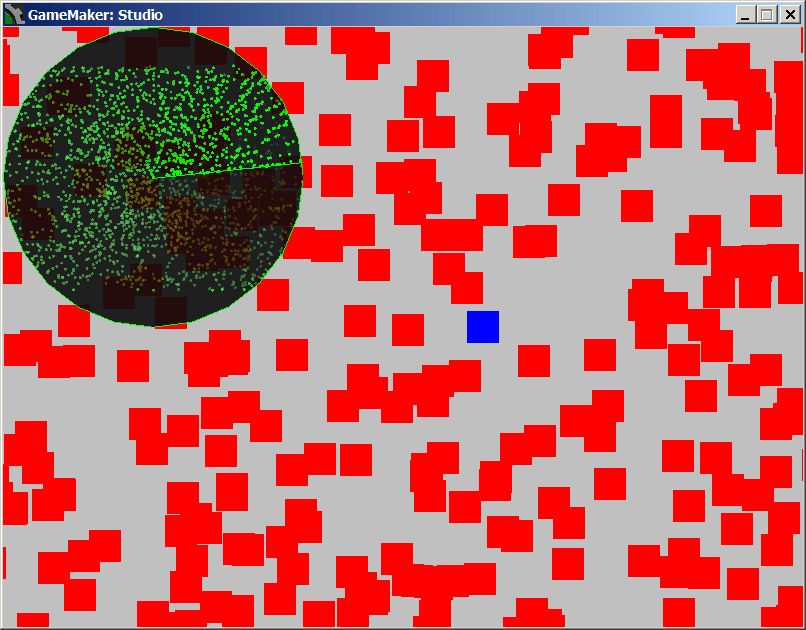
I still can’t get it to run in HTML5 builds, so a screen shot will have to do.

Radar Demo by csanyk

Download radar_example.gmz

GameMaker Studio marks 1st anniversary

YoYoGames is celebrating the release of GameMaker Studio, one year ago today. With all the updates and improvements that have been made to the product since the 1.0 release, it’s surprising that it’s only been a year since it came out of beta.

I myself have not been a GameMaker user for very long, either. I began using it in September 2010, with version 8.0. In that time, I have found it to be the easiest to learn development tools that I have ever used. It has enabled me to make playable games with features that I would not have thought myself capable of building, and then rewarded me as I gained confidence that I could become a better programmer than I had previously dared to dream. And this has allowed me to pursue a long-dormant dream that I’ve had since I was six years old and experienced my first videogame: to design and build fun, playable games. As a result, life is better than ever. For this I have been very grateful.

Happy birthday, GameMaker Studio!

An appeal for better YouTube video tutorials

I like people who put up how-to videos on YouTube showing how to do things they enjoy doing, particularly videos about gaming, game design, development, programming, art, criticism, reviews, you name it. But, unfortunately the majority of them are not as well produced as they should be.

The equipment to make videos is cheap, readily available, and increasingly easy to use, but making a good video is still not a simple thing. High quality production values and good content is requires work, but time and again I see a lot of the same amateurish mistakes made, and a lot of them are easy to correct.

Set up

  1. Test your recording and capture setup. Test your setup! Test your setup!
  2. Do a quick sample take, and quality-check your results. If there’s a problem with the quality, bite the bullet and re-do the video. But avoid wasting that time by verifying the setup is right before you start production.
  3. Check your audio levels before recording. I can’t tell you how many videos I can’t hear on my laptop’s speakers. But I have no problem at all hearing audio on my laptop when the recording levels were good.
  4. Make sure that the audio track is audible, that there is no background noise, buzzing, dogs, traffic, airplanes, or anything else that distracts from the audio. Clear and sharp is nice to listen to.
  5. Test your video capture quality. If you’re dropping frames, or getting blurry results, figure out why, and fix it before you post a video. Trying to read code through low-resolution downsampling or mpeg artifacting is awful.

Content

  1. Know what you’re talking about. Take the time to really learn your subject before you go out and publish videos. You don’t need to know it inside and out, but do know the topic you’re going to cover.
  2. Think about what you’re going to say before you say it. Write up an outline or cue cards or a script if you need to. Have an agenda and don’t stray too far from it.
  3. Get right to the point.
  4. It’s fine to re-record the audio track and narrate over the video — it’s really hard to talk and do something that requires skill or thought at the same time. If you’re doing a programming tutorial, much of the video will probably be a still image of the screen, which you can pause and talk over as long as you need to.
  5. Practice and rehearse. Don’t subject your audience to you fumbling about with your words or with the tools. There’s nothing wrong with stopping and doing it over, or at least editing out the mistakes. It’s harder than it looks. If you make a mistake, just keep going back and try again until you get it right, and then edit out the mistakes.
  6. Speak naturally, but clearly and out loud, like you’re talking to a room full of people, rather than mumbling like you’re trying to avoid waking up someone sleeping in the next room. Try to project some vitality and excitement.
  7. Have an intro. Get it out of the way quickly, but have it. Tell people who you are, where people can go to find out more about you and your projects, and what you’re topic you’re going to be talking about today. Say it out loud, put it in print on the screen, and put it in the video description.
  8. Video footage of the working project being demonstrated. Show off all the features. This is the part of the video that will get attention and draw people in.
  9. Now go under the hood. Now that you’ve shown us what your demo can do, take us on a tour of the code and explain how it works. This is the really interesting part of the video.
  10. Iterations. If you build up the project in iterative phases, show that process. It’s very helpful to show new programmers how to break down a problem into smaller parts, and put those parts together and refine the approach toward a well-polished solution. Show the project in its stages of development, but don’t force us to watch the entire process start to finish. Skip to the good parts.
  11. If it’s interesting, talk about alternative approaches, their pros and cons, and why you chose to do things the way you did. Was performance critical here? Flexibility of the solution? Code maintainability? Modular design? If there’s controversy over one approach vs. another, do a side by side demo of each approach, comparing their strengths and weaknesses.
  12. Think about ways to say what you’re saying more simply. Don’t think on camera. You’re supposed to be presenting what you know, not discovering it.

Postproduction

  1. Edit! If you are rambling, or misspeak, go back and edit it out, or do a re-take.
  2. Some people like to appear on camera. Nothing wrong with that. But when it’s time to show what’s on screen, switch to video capture software as your input source. Don’t film the screen over your shoulder. Use your editing software to stitch the shots together. You don’t have to do it all in one take.
  3. Subtitles are appreciated, but if at all possible, don’t do “poor man’s subtitles” by opening up a text editor, setting the font big, and typing what you’re doing. Especially, don’t use this as the only method of conveying what you’re doing, in lieu of voice narration. Watching you type in realtime is extremely boring, especially if you hit backspace a lot.
  4. Unless the video is on the topic of how to use the IDE, try to shorten or eliminate the amount of time devoted to navigating the interface. Most people know how to create a new asset, drag-and-drop a command into the Actions pane of the object editor, or type a file already. What’s interesting is what you’re putting in the asset. If you want to walk people through some code, that’s great, just don’t make us watch you type it. Paste it in, and then go through it line by line, highlighting the line you’re talking about if necessary. Instead of building the project up in front of the camera, walk people through a pre-built project, explaining it in detail.
  5. Make your code style as presentable and readable as possible. Your code should be beautifully formatted with a extra attention paid to readability. Use well-chosen names for assets and variables. Use whitespace and indenting. Don’t code slop with the excuse that you’re doing things quickly because you’re on video. We’re watching the video in order to see how well you can code.
  6. Don’t put a musical soundtrack in your video, or any other sort of filler audio. Narrate. Intro/outro music is fine if you’re shooting for professional polish, but not necessary. If you do use music, make sure a) it doesn’t suck, and b) it doesn’t get your video pulled for violating someone else’s copyright.
  7. Ask yourself: Does the video need this? Cut extraneous bits. If you need to fiddle with your mic, or answer the phone, or whatever, cut it.
  8. Ask yourself: Could I have done it even better? Re-do it.
  9. Don’t post junk. If it didn’t turn out well, you don’t have to post it.
  10. Don’t shoot for absolute perfection. A few minor flaws are excusable. But do try to make the best quality videos that you can.

Essential extras

  1. Host a demo project file somewhere, and link to it from the video description. If you’re sharing your knowledge and techniques, you might as well share your code. You’re already sharing it through the video, but by not including the downloadable project, you’re forcing everyone to waste their time re-typing in your code. There’s really no reason not to just provide it. There are many options for free file hosting services: google drive, dropbox, mediafire, github, sourceforge, the list goes on.

GameMaker Tutorial: String handling and Drawing Text

[Editor’s note: This article was written primarily with GameMaker: Studio 1.x in mind. There have been some changes to the way GameMaker Studio 2 handles strings, mainly dealing with escaping codes, and this article has not yet been updated to reflect that. Refer to the official manual chapter on Strings for all the details.]

Drawing text to the screen is a basic part of most videogames. There are a huge number of useful applications for text. Just a few of the more common applications:

  1. Score
  2. HUD/Dashboard
  3. Menus
  4. Special effects
  5. Messages and dialogs
  6. Instructions/Story
  7. Debugging/diagnostics/benchmarking — it can be incredibly useful to draw the current value of variables to the screen when debugging, or performance metrics.

Things to know about drawing stuff in GameMaker

  1. Draw functions only work in Draw Events:  If you try to use them anywhere else, nothing happens. If you’re drawing in the Draw GUI Event, you’ll want to be familiar with the draw_set_gui_size() function so your Draw GUI stuff will be drawn to the proper scale if you’re using Views.
  2. Drawing directly to the screen (especially text) is slow. Draw a lot of text and performance will suffer.
  3. There are ways to improve performance when drawing text. The most important of these is to use Surfaces. Surfaces are not available in the free edition of GameMaker, and not all hardware may support them. Using surfaces properly is not that difficult once you understand them, but is generally considered to be an “advanced” concept in GameMaker, and is less straightforward than drawing directly to the screen in the “normal” way.
  4. But there are challenges. Setting up a Surface for optimizing text performance is tricky because it can be hard to know in advance how large the surface needs to be to contain the text you are drawing. Fortunately, GameMaker provides some useful functions which can enable you to get the dimensions needed for the surface: string_width() and string_height(), which give you the width and height, respectively, in pixels of a string drawn with draw_text() in the current font. If you’re using draw_text_ext() string_width_ext() and string_height_ext() are the functions to use instead. These functions allow you to create a drawing surface of proper dimensions, provided you know the string and font and can decide on a width prior to creating the surface. Keep in mind that the dimensions of a string depend on the font used to display it, so always use draw_set_font() to set the font to the correct one that you intend to draw the string with before using the measurement functions.
  5. Draw settings (for things such as color, alpha transparency, and font alignment) are global in GameMaker. That means that if you have multiple objects which draw functions, and if any of them changes the color, alpha, or font alignment, all objects will be drawn using those same settings. For this reason, if you are using draw functions in your objects, it’s best to set all the draw settings in the object in order to make sure they are what they need to be. If you never change color, or alpha, or font alignment, then you don’t need to set that property before you use draw functions — but if you do need to change them for one object, it’s best to set them to what they need in the Draw event of every object, immediately before calling the drawing routines.
  6. For serious performance optimization, you need to learn how GameMaker “batches” drawing operations, and organize your code to have the least number of drawing batches as possible.

Fonts

Everyone these days knows what fonts are, right? Fonts are like the clothes that text dresses up in when it wants to go out and be seen. In GameMaker, fonts are game resources, just like sprites, or objects, or other resources, and need to be added to the project — you don’t simply have direct access to the same fonts that are installed on the system, you have to explicitly add a font to your project. If your project has no font resources set up, text drawn to the screen will still render, but oddly and probably not consistently across platforms. So, always define a font resource and make sure that it’s used if you’re drawing text.

To save space, you can define a font resource to include only certain character ranges, such as number digits only, or alphabet characters only, or only the upper case or lower case letters in the alphabet. If you know you won’t be needing certain characters, and are concerned about the size of the game when it is built, go ahead and constrain the range. Otherwise, the default range of 37-128, covering A-z, 0-9, and special characters, is good.

For legal reasons, it’s important to note that fonts are copyrighted, and most need to be licensed for commercial use. There are free fonts out there (google for them) with liberal licensing terms that you may be able to use in your project, if the terms of the license allow.

Of course, you can create your own fonts. Creating your own font is outside the scope of this article, but there are tools you can use to produce your own fonts if you’re crazy enough. It’s probably easier to simply purchase a license for a professionally designed font.

Formatting issues

Alignment

Text alignment is set using the and draw_set_valign() functions. Use GameMaker’s built-in font align constants {fa_left, fa_center, fa_right, fa_top, fa_middle, fa_bottom} as arguments to these functions to keep the code readable.

New Lines

To signify a new line in a GML string, use the pound character (#). The GML code

draw_text(x, y, "Hello#World");

would be drawn like so:

Hello
World

You can also use a literal return in your string, but it’ll make your source code look yucky.

draw_text(x, y, "Hello
World");

Would draw to the screen exactly the same as “Hello#World”.

Escape characters

If you’re familiar with strings in programming languages, you know that it gets tricky when using certain characters that are reserved for program syntax or markup. Most languages allow you to “escape” the markup syntax so that you can still use characters normally reserved for markup purposes as literal characters in a string. GML is no exception.

#

What if you want to use a # in a string, and you don’t want it to signify a new line? Use the “#” escape character.

The string "We're \#1!" would be drawn like so:

We’re #1!

Quotes

A matched pair of quotes, single or double, can be used in GML to begin and end a string. If you want quotes to appear as text within a string, you can use the other type of quote to encapsulate them, like so:

my_string = 'This is a single-quoted string.';
my_string = "This is a double-quoted string.";
my_string = 'This is "an example" of a string including double quotes-as-text.';
my_string = "This is 'an example' of a string including single quotes-as-text.";

It gets tricky when you need to have BOTH types of quotes in the same sentence:

my_string = 'Bob said " We shouldn' + "'" + "t."+ '"' ; // Bob said "We shouldn't."

It looks like a mess, but you just have to do a lot of concatenation and quote your quotes with the other type of quote marks.

String concatenation

As with many languages, you can combine two strings together by adding them with the + operator. With number values + adds them; with strings, + concatenates the two strings together, creating a longer string made of the first one and second one stitched together. You can do this with literal string values, or with variables containing strings:

concatenated_string = string1 + string2;
concatenated_string = "Hello " + "World";

But if you try to add a string and a number, you need to tell the program to convert the number into a string. The string() function will convert numeric values to strings, which allows them to be incorporated into a larger string.

health = 100;
draw_string(x, y, "Player1 Health: " + string(health));

GML String functions

We’ve already introduced a few of the more commonly useful ones, but there are many other useful GML string functions. I’m not going to go into each one in depth, but review the official documentation and keep in mind that they’re out there, and can be useful.

One important thing to be aware of with GML strings is that, unlike most other languages, GML strings are 1-indexed, not 0-indexed. This means that when counting the characters that make up the string, the first character is character 1, not character 0.

GML text drawing functions

Mostly I have used draw_text() and draw_text_ext(), but it’s good to know that there are a few more variations on these basic text drawing functions.

  • draw_text
  • draw_text_color
  • draw_text_ext
  • draw_text_ext_color
  • draw_text_ext_transformed
  • draw_text_ext_transformed_color
  • draw_text_transformed
  • draw_text_transformed_color

It might seem like a lot to keep track of, but it’s pretty easy if you remember the following:

draw_text: basic draw text function.

_ext: allows you control over the line spacing and width of the draw area. This means you don’t have to manually handle line breaks by inserting # or return characters in your text.

_transformed: allows you to scale and rotate the drawn text.

_color: allows you to set a color gradient and alpha to the text.

Again, text is always drawn using the current global drawing color, alpha, halign and valign properties. It’s best to set these before drawing to ensure that they are the expected values, using draw_set_color, draw_set_alpha, draw_set_halign, and draw_set_valign functions.

Keep code clean by storing strings in variables

This is perhaps obvious, but it’s often useful to store a string value in a variable, to keep your code neater and easier to read.

draw_string(x, y, "Four score and seven years ago our fathers brought forth on this continent a new nation, conceived in liberty, and dedicated to the proposition that all men are created equal.##Now we are engaged in a great civil war, testing whether that nation, or any nation so conceived and so dedicated, can long endure. We are met on a great battlefield of that war. We have come to dedicate a portion of that field, as a final resting place for those who here gave their lives that that nation might live. It is altogether fitting and proper that we should do this.##But, in a larger sense, we can not dedicate, we can not consecrate, we can not hallow this ground. The brave men, living and dead, who struggled here, have consecrated it, far above our poor power to add or detract. The world will little note, nor long remember what we say here, but it can never forget what they did here. It is for us the living, rather, to be dedicated here to the unfinished work which they who fought here have thus far so nobly advanced. It is rather for us to be here dedicated to the great task remaining before us—that from these honored dead we take increased devotion to that cause for which they gave the last full measure of devotion—that we here highly resolve that these dead shall not have died in vain—that this nation, under God, shall have a new birth of freedom—and that government of the people, by the people, for the people, shall not perish from the earth.");

— is a lot harder to read than:

draw_string(x, y, gettysburg_address);

— and moreover, all that text gets in the way of comprehension of what your code is doing. So use variables to store strings, and keep your code looking clean.

draw_text_ext()

While we’re dealing with a very long string, it’s a good opportunity to talk about a function that makes drawing them much easier.

You could manually set line breaks in a long string by sprinkling #’s every N characters or so, but that is laborious and inflexible. It’s better to use the draw_text_ext() function, which allows you to specify a width for the line, and (optionally) also how many pixels should separate lines.

draw_text_ext(x, y, string, vertical_separation, width);

When drawn, the line will automatically break when it reaches the width provided to the function.

Formatting

GameMaker is rather limited in its typographical capability when drawing text to the screen. GameMaker Font resources, unlike an installed font on the system, are a specific size and style only. There’s no bold or italic or other style options available that you can use to modify the font resource. If you want bold or italic, you have to create a new font resource, and use draw_set_font(font) to that resource in order to use it.

This means that if you want to use bold text in a sentence, you need to create a second font resource for the bold font, draw your normal text, then switch fonts to the bold font, and draw the bold text, somehow positioning the two different drawings so that they look like they’re a single block of text. You have to leave a hole in your normal text where the bold word will appear. This is not easy, nor is it generally recommended. If you really want it, and are masochistic enough to put yourself through the trial and error to do it, go ahead. But before too long you’ll probably realize that it’s not worth the effort.

See this script draw_text_rtf which allows you to draw rich text format, originally written by Miah_84 and improved by me.

Special Effects

Scrolling text

Scrolling text is extremely easy to do. The draw_text function must be called by some object, and includes arguments for the x and y where the text will be drawn. Simply change the x and y over time, add you have moving text. The easiest thing to do is to set the instance that is drawing the text in motion.

Typewriter text

Another easy to implement technique is “typewriter text” — that is, displaying a string one character at a time as though it were being typed out.

First, let’s take a string stored in a variable, my_string.

string_length(my_string) will give you the length of my_string.

draw_text(x, y, my_string) would draw the entire string at once. But we want to draw it one letter at a time.

The GML function string_copy(string, index, length) comes in handy here. We can use this instead of string in our draw_text function:

//In the Create Event
typed_letters = 0;
//In the Draw Event
draw_text(x, y, string_copy(my_string, 0, typed_letters);
if (typed_letters < string_length(my_string)) {typed_letters++};

Note that this will type at room_speed characters per second, which at 30 fps is extremely fast. You may want to type slower, in which case you can slow down the function in one of several ways. You can use an alarm to increment typed_letters every N steps, rather than increment it in the Draw event. Or you don’t want to bother with an Alarm event, you could do something like this:

//In the Draw Event
if typed_letters < length {typed_letters+=0.1;}
draw_text(x, y, string_copy(my_string, 0, ceil(typed_letters)));

This would give a typing speed of room_speed/10, or 1 character roughly every 0.33 seconds for a 30 fps room, or 3 characters/second, which is a bit more reasonable. You can adjust this rate to taste.

If you want the text to reset and type over again when the message is completed, you can do this:

if typed_letters < length {typed_letters+=0.1;} else {typed_letters = 0;}

Additionally, you can optionally add code to play a sound with each letter, or start a sound when the typing starts and stop the sound with the full length string has been reached.

Marquee text

The Typewriter Text technique can be modified slightly to draw a scrolling marquee:

//In the Create Event
/*Hint: you may want to pad the end of your marquee string with extra spaces so it 
will scroll all the way off your marquee.*/
my_string = "Some text for your marquee "
start_letter = 0;
marquee_length = 10; // or however many letters in your marquee
type_rate = 3/room_speed; // 3 char per second
marquee_scrolling = true;
//In the Draw Event
if marquee_scrolling{
 draw_text(x, y, string_copy(my_string, start_letter, ceil(start_letter + marquee_length)));
 start_letter += type_rate;
 if (start_letter > string_length(my_string)) start_letter = 0;
}

Blinking text

Blinking is annoying in web pages, but can be a very useful effect in games. Blinking attracts the eye, and can get attention where it’s needed. Of course, blinking can be done with any graphical element, not just text.

Blinking is just turning on the drawing and then turning it off on a cycle, using a timer, such as an Alarm Event.

//In the Create Event
blink = true; //(or false, if you want the initial state to be off)
blink_steps = room_speed/2; //for a 1 second blink cycle. Set this value to suit.
//In the Alarm[0] Event
blink = !blink; //toggles the blink from on to off or vice versa.
alarm[0] = blink_steps; //re-sets the alarm so it keeps blinking
//In the Draw Event
if blink {/*do the draw stuff*/}

The above code gives a 50% “duty cycle” (the blink is “on” 50% of the time, “off” 50% of the time). It’s possible to vary the duty cycle in a variety of interesting ways…

//In the Create Event
blink = true; //(or false, if you want the initial state to be off)
blink_on_steps = room_speed/2;
blink_off_steps = room_speed/4;
//In Alarm[0]
if blink {alarm[0] = on_steps;} else {alarm[0] = off_steps;}
blink = !blink;

This blink code will result in a blink that stays on for 0.5 seconds, and blinks off for 0.25 seconds.

Even more sophisticated blink periods can be achieved using math functions rather than a static value. Setting alarm[0] = irandom(10) would result in a random flicker. Think of creative ways to use other math functions to create interesting effects. If you come up with a good one, share your code by posting a comment to this article.

Yet another way to flicker or blink text is through varying alpha. Or by switching colors. Or even size.

One last way to blink is to toggle the state of the visible boolean in the instance.

visible = !visible;

One thing to keep in mind, though, is that an instance that is not visible will not be checked for collisions. Also visible applies to the entire object’s Draw event, so it is all or nothing. Still it is a simple way to draw or not draw an object.

What next?

If you’re familiar with other programming languages, you may be disappointed at the limits of the built-in functions for manipulating strings. There are a lot of things you can do more easily in other languages than in GML, unfortunately. Since GML only has two data types, strings are extremely important, but because games tend to focus more on graphics, sound, and interface, the average GameMaker developer can get by with the string functions that do exist, for the most part.

There are a number of useful GML scripts for doing more advanced things with strings that have been collected at gmlscripts.com. Many of the functions built in to more mainstream programming languages can be found there.

GameMaker tutorial: Elegant instance_change() in your state machine

In GameMaker, a commonly used technique is to build a system made up of a several objects to represent an entity in your game, such as the player or enemy, in various states, such as idle, dead, shooting, jumping, running, climbing, and so forth. This is what is known as a Finite State Machine pattern.

When the time is right in the game, we change an instance from one state object to another by using the powerful instance_change() function. Instance_change() takes the instance and transforms it into a new type of object. Its Event behaviors will change to those defined by the new object type, but its old properties (object variables) will remain the same as before, allowing the instance to retain its variables with their current values.

The instance_change() function takes two arguments: object, the object the instance will turn into, and perform_events, a boolean which controls whether the new object’s Create event will be performed or not.

Normally, the Create event is where an object initializes its variables and initiates its default behavior. When we’re dealing with a State Machine comprised of a number of objects, this can become problematic, however. Some code in the Create Event is initialization code that we may only want to execute one time, to set up the instance when a brand new instance is created, while other code in the Create event is behavioral and we may need to execute whenever an existing instance reverts back into that state again. Thus, the perform_events argument in the instance_change() function isn’t adequate for this situation — it’s too all or nothing.

For example, let’s say I have a generic object for an enemy, oEnemy. I want some visual variety to this enemy, so I’ve created a few different sprites for it. In the Create Event, I want to randomly choose one of those sprites to be the sprite for this instance. But if the instance changes into another state object, and then reverts back, if I call the Create Event, it will randomly choose a new sprite. I don’t want this, as it ruins the illusion of continuity — I need that instance to retain its sprite. But I do need the Create Event to run, whenever it re-enters this state, because I’m using it to set the instance in motion.

So, how can I elegantly select which lines of code I want to run in the Create Event?

Conditional blocks

This is the least elegant solution, but you could use if to check whether a variable exists or has a value. For example:

if sprite_index == -1 {sprite_index = choose(sprite1, sprite2, sprite3);}

This is inelegant because it adds lots of lines of code that only need to be run one time (when a brand new instance is created) but need to be checked potentially many times (any time that instance changes back into the object state). It also only checks certain, specific things, case by case. As I continue to build the state machine, I may end up introducing more features which require initialization, which would necessitate more checks, further bloating the code. I always want to write the least amount of code needed, both for reasons of performance and maintainability.

Move one-time code to an init state object.

The more elegant solution is to recognize that initialization is its own state, and we need to separate it out from the other states in the state machine. We can create an oEnemy_init object, put our one-time initialization code into it, and then the final step in the Create Event for the init object would be to change the object into the default state.

None of the other states in the state machine should put the instance back into the init state, thereby guaranteeing that the init code only executes once. Now your code is neatly separated, your states objects in your state machine are as simple as can be.

Radar

I’ve been messing around with mini maps, and after a few different approaches, I have come up with a cool demo that simulates a radar screen. The screen even has a sweeping beam that lights up the blips, which fade over time. Only instances which inherit from an object called oMappable are drawn on the radar. The size of the blips is based on the width of the sprite of the oMappable child, so objects of differing sizes will be shown in scale relative to each other.

radar screenshot

It runs quite well, with up to 4000 simple objects (~30fps on a 2.0GHz Core2 Duo).

Demo (.zip)

Project Source (.gmz)

Stat-Driven Causality: Better than pseudo-randomness!

Watch this video on how the “random” loot drops in the original Legend of Zelda were actually determined:

I found it very interesting. In my game projects, one of the more difficult areas of game design is getting the frequency of the loot drops to feel right.

Let’s look at the ways in which the loot drops in Zelda are not random.

  1. Loot drops happen because of an event, eg defeating an enemy. They don’t happen “randomly” for no apparent reason. This drives a feedback loop of “kill monster, get treasure”.
  2. Which type of item gets dropped is actually not random. However, it’s important for the drop to seem random to the player, so they never can be sure of what they’re going to get. This keeps them guessing and curious: “What will I get if I kill this monster? There’s only one way to find out; better kill it!” invites play much more than “Ho hum, here’s another [enemy]; I know they only drop [type], and I don’t need that right now, so I’ll just walk by it.”
  3. It does seem that certain types of enemies do drop certain types of loot a bit more often. For example, in the overworld Tektites seem to be pretty reliable about dropping rupees, and tend to yield a higher proportion of blue rupees that are worth 5. They do drop other things, bombs and hearts, and fairies, but it does seem like they will drop rupees a bit more than other types of enemies. There may be a similar relationship between other types of enemies and other types of loot. This gives certain areas of the map, where these types of enemies appear, have strategic value for “farming” a given type of resource.
  4. It would make sense that more challenging enemies might yield more/better loot, but I don’t notice this so much when I play LoZ. It seems that as you progress through the game, the difficulty of the monsters ramps up, matching your own power increase, but that the reward remains more or less constant. Still, in many games, there’s a directly relationship between challenge and reward.
  5. By connecting the frequency and type of loot dropped to a complex conditional based on the internal state of the game’s various counts, it’s possible to tune the difficulty of the game to a far more precise degree than could be done through purely random loot drops. For example, if the player is low on hearts, you could use that data to drive a slight increase in the amount of health drops, to make the game easier. Or, to make the game more challenging, you could make health drops rarer when you’re low. This can be tweaked so that “easier” areas of the game have the more generous/forgiving drop rate, while the harder areas have stingy/unforgiving drop rates.

Up until now, I have thought of loot drops as something based on completely random chance, not influenced by various factors being tracked in the game. I had played with various stochastic functions to create what felt like “right” odds to give the game the right “feel”, and wondered why simple random distribution never felt quite right.

But what is “right” is highly subjective, difficult to define, and requires extensive time spent playtesting in order to gauge “feel”. But now, I see a much more interesting potential in tying the frequency and/or item dropped to causal relationships to various stat counters. What’s great about tying the loot drops to in-game stats is that it allows you to directly apply mechanisms to balance the game, based on how the stats reflect the player’s performance, their progress in the game, and the amount of difficulty you want at that point in the game.

Exactly how to do this will still be very subjective, and require extensive play testing, of course, but it will be tune-able and in the control of the developer, rather than purely random chance. I am excited by the possibility of using the stats model to drive feedback loops which can help to govern the game’s challenge level, or to provide certain items when they are more likely to be needed, or just to make the loot drop frequencies seem a little more interesting and less totally random. It seems like a potentially much more elegant way of distributing items in the game.